
Jul 5th 2026
Resources
- Facebook Ads for Amazon [Video Course]
- Drive Traffic To Amazon [Ultimate Guide]
- Get More Amazon Reviews [Ultimate Guide]

TL;DR
Why are negative keywords critical for protecting an Amazon PPC budget?
Because Amazon charges for every single click, meaning your budget is quickly drained by automated, low-intent matches that will never convert. Establishing a negative keyword list keeps your ad spend strictly focused on searches with genuine purchase intent, which directly lowers your Advertising Cost of Sale (ACoS) and eliminates wasted spend.
How do I know whether to place negative keywords at the campaign or ad group level?
You should add universally irrelevant terms (like broad, non-purchase intent words) at the campaign level so they automatically apply across all ad groups. You should reserve the ad group level for product-specific exclusions, such as a specific color, size, or model mismatch.
What are the most common strategic mistakes sellers make with negative keywords?
Frequent errors include using a single broad root word as a Negative Phrase Match (which blocks too much traffic) and negating terms too early before they have gathered 25 to 30 clicks. Other expensive mistakes include failing to isolate manual and auto campaigns, and never auditing or removing old negative keywords as your product listing improves over time.
What intent-based keywords should I proactively block before a campaign even launches?
From day one, you should load a universal negative keyword list to block non-purchase intent terms like “free,” “used,” “how to,” or “review”. Additionally, you should block audience and feature mismatches, such as sizes, genders, or age groups that do not apply to your product.
Amazon negative keywords are specific words or phrases you add to your PPC campaigns to prevent your ads from appearing for irrelevant or low-intent searches. When a shopper’s search query contains one of your negative keywords, Amazon removes your ad from that result.
This protects your budget from wasted ad spend, raises your click-through rate (CTR), lowers your Advertising Cost of Sale (ACoS), and keeps your campaigns focused on shoppers who are most likely to buy your product.
Table of Contents
- What Are Amazon Negative Keywords?
- Why Amazon Negative Keywords Matter for Your PPC Campaigns
- How to Find Amazon Negative Keywords: The 3-Signal Method
- Your Amazon Negative Keyword Starter List
- Campaign Level vs. Ad Group Level: Where to Add Negative Keywords
- The Search Term Isolation Method: Stop Competing Against Yourself
- How to Add Negative Keywords on Amazon: Step by Step
- Advanced Strategies for Amazon Negative Keywords
- Common Amazon Negative Keyword Mistakes to Avoid
- Automate Your Negative Keyword Management
- Conclusion: Build Your Negative Keyword Strategy and Scale Smarter
- FAQ: All About Amazon Negative Keywords
Amazon’s advertising market reached nearly $42 billion in revenue in 2024, and every dollar you spend in that auction needs to count. Without a solid negative keyword strategy, a significant portion of your PPC budget goes to searches that will never produce a sale.
This guide from LandingCube walks you through how to find the right Amazon PPC negative keywords, add them correctly, and use advanced strategies to lower your ACoS and build campaigns that scale.
What Are Amazon Negative Keywords?
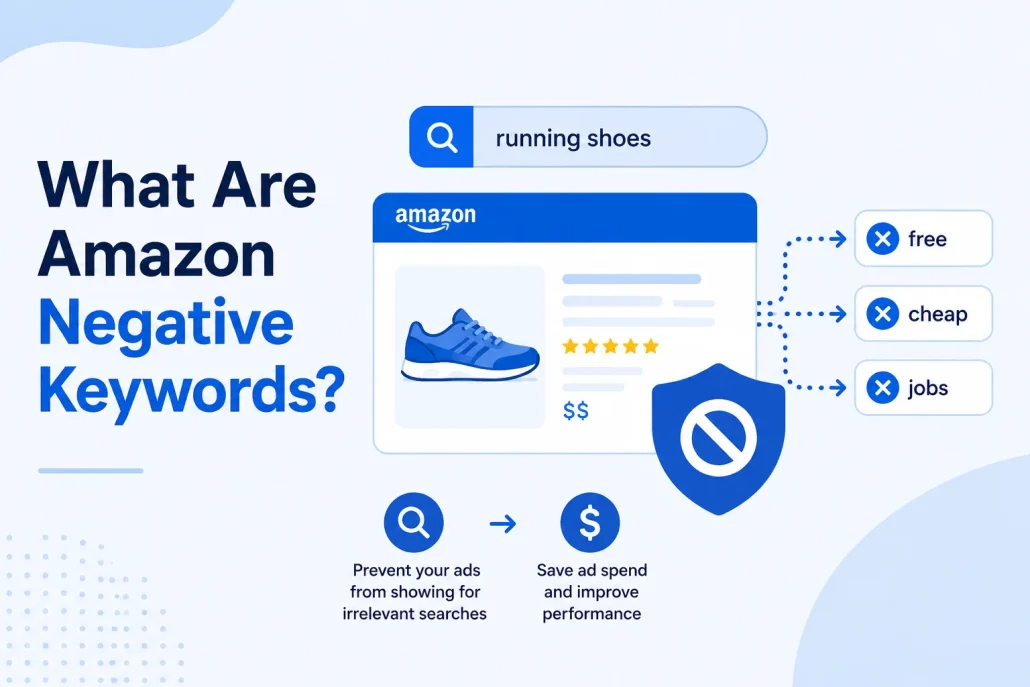
If positive keywords are the door that lets shoppers in, negative keywords are the lock that keeps the wrong shoppers out. When you add a word or phrase to your negative keyword list, you tell Amazon not to enter your ad into the auction when that term appears in a shopper’s search query. This gives you precise control over who sees your ads and stops you from paying for clicks that have no real chance of converting.
Amazon gives you two match types for negative keywords:
Negative Exact Match
Negative Exact Match blocks your ad only when a shopper’s query matches your negative keyword exactly, including close variants like plurals. For example, adding “cheap wallet” blocks “cheap wallet” but still allows “cheap black wallet” because the extra word breaks the exact match.
Negative Phrase Match
Negative Phrase Match is broader. It blocks your ad any time a query contains your phrase in the same order, regardless of what comes before or after. Adding “for kids” blocks “shoes for kids,” “sneakers for kids size 5,” and any query containing that phrase.
| Feature | Negative Exact Match | Negative Phrase Match |
|---|---|---|
| Match Logic | Blocks the exact term and close variants | Blocks any query containing the phrase in order |
| Maximum Word Limit | Up to 10 words | Up to 4 words |
| Risk of Over-Blocking | Low | Moderate |
| Best For | Specific, data-confirmed bad terms | Entire irrelevant concept categories |
| Recommended Default | Yes, start here | Use only when fully confident |
In most cases, start with Negative Exact Match. It removes a specific bad search term without risking unintended traffic loss. Move to Negative Phrase Match only after confirming the pattern across multiple Search Term Report cycles.
Why Amazon Negative Keywords Matter for Your PPC Campaigns
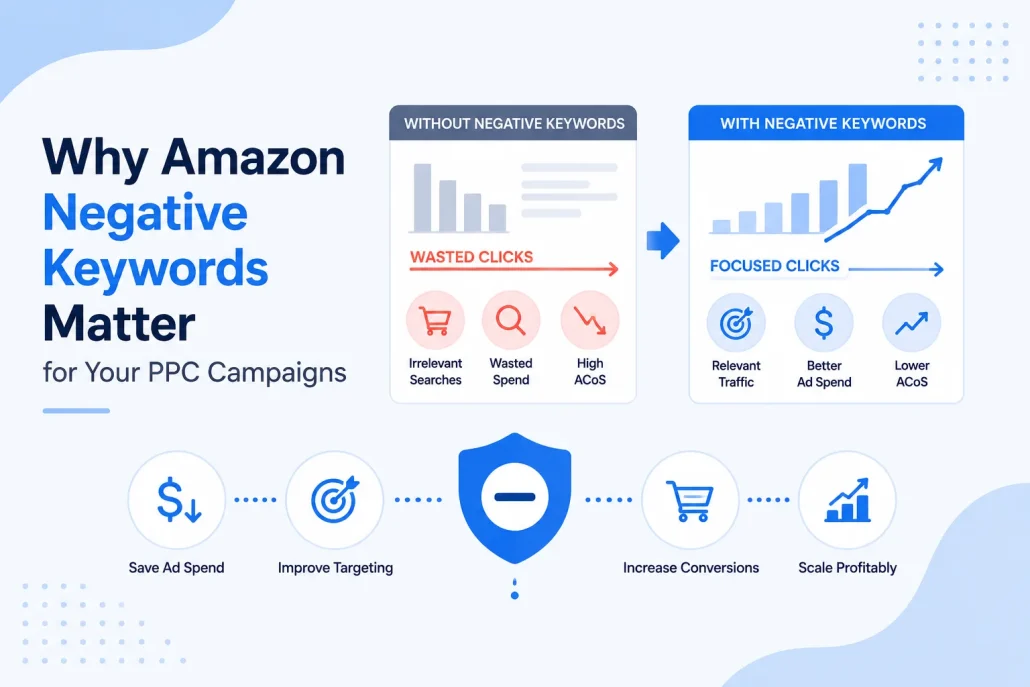
According to Amazon’s Sponsored Products best practices, negative targeting is a recommended strategy to stop your ads from appearing on placements that do not meet your performance goals. Here are the four core reasons to make this part of your routine:
1. Eliminate Wasted Ad Spend on Amazon
Amazon charges you for every click whether the shopper buys or not. In auto campaigns, Amazon matches your ads to hundreds of search terms automatically, and many of those will never convert.
A clean negative keyword list keeps every dollar on searches with genuine purchase intent. Explore proven strategies for how to increase sales on Amazon to compound these gains further.
2. Improve CTR and Your Amazon Conversion Rate
When your ad shows for an irrelevant search and the shopper scrolls past it, your CTR drops. When they click and immediately leave, your conversion rate drops. Both signals hurt your ranking over time.
Amazon PPC campaigns convert at around 10% on average, far above standard ecommerce sites, and the right negatives keep you at or above that benchmark. Review your Amazon conversion rate data regularly to track the impact.
3. Lower Your ACoS and TACoS
ACoS Amazon (Advertising Cost of Sale) equals your ad spend divided by your ad revenue. Stop spending on searches with no sales and your ACoS drops immediately.
Advanced sellers also track TACoS Amazon (Total Advertising Cost of Sale), which includes organic revenue in the denominator. Leaner spend combined with better conversions improves both metrics and feeds the Amazon flywheel effect.
RANK LIKE THE PROS
Discover a better way to rank products from external traffic, like Facebook, Google and TikTok, with LandingCube promo pages.
Try it free for 21 days.
4. Prevent Keyword Cannibalization and Sculpt Traffic
Amazon keyword cannibalization happens when two of your own campaigns compete for the same search term. Both enter the same auction, your bids drive up your own CPC, and your performance data becomes unreliable.
Negative keywords solve this through traffic sculpting Amazon PPC, directing each query to exactly the right campaign. Build this into your Amazon marketing funnel from the start to keep every search term where it performs best.
How to Find Amazon Negative Keywords: The 3-Signal Method
Your Amazon Search Term Report is the single best source for negative keyword candidates. It shows you every actual search query that triggered your ad, along with key performance data. Here is how to use it systematically:
Step 1: Pull Your Search Term Report
In the Amazon Advertising Console, go to Reports, select Create Report, and choose the Search Term report type for Sponsored Products. Set the date range to the last 30 to 60 days, download as CSV or Excel, and focus on: Search Term, Impressions, Clicks, Spend, Orders, CTR, and ACoS.
Full guidance is available in Amazon’s Search Term Report documentation. The right Amazon Analytics Tools help you process large reports faster.
Step 2: Apply the 3-Signal Method
Once you have your data, sort by Spend in descending order and scan for three types of underperforming search terms:
Signal 1: The CTR Graveyard (High Impressions, Low CTR, No Sales)
- Threshold: 2,500 or more impressions, CTR below 0.3%, and zero sales
- What it means: Shoppers see your ad and scroll past it, signaling a clear relevance mismatch
- Action: Add as Negative Exact Match immediately
Signal 2: The Budget Drainer (High Spend, No Sales)
- Threshold: Spend that exceeds your target cost per acquisition (CPA) with zero sales
- Adjust based on your product’s margin; higher-margin products can absorb more test spend before negating
- Action: Add as Negative Exact Match
Signal 3: The Click Black Hole (Many Clicks, No Sales)
- Threshold: 30 or more clicks with zero sales
- Why 30 clicks? With a 10% average Amazon conversion rate, 30 clicks with no sale confirms with high confidence the term does not convert for your product
- Action: Add as Negative Exact Match or sharply reduce the bid and monitor
| Signal | Threshold | What It Means | Action |
|---|---|---|---|
| CTR Graveyard | 2,500+ impressions, below 0.3% CTR, 0 sales | Shoppers are ignoring your ad | Negate immediately |
| Budget Drainer | Spend exceeds target CPA, 0 sales | Pure budget waste | Negate immediately |
| Click Black Hole | 30+ clicks, 0 sales | Clicks but no buyers | Negate or cut bid sharply |
Step 3: Pre-Filter by Shopper Intent
Beyond the numbers, scan your search terms for intent patterns that consistently underperform across all products. These categories almost always signal non-purchase intent:
- Informational searches: “how to,” “what is,” “diy,” “tutorial,” “recipe,” “guide”
- Non-purchase intent: “free,” “used,” “rental,” “refurbished,” “secondhand,” “borrow”
- Research mode: “vs,” “versus,” “review,” “compare,” “comparison” (evaluate case by case)
- Wrong audience: age groups, gender, or size qualifiers that do not match your product
- Feature mismatches: color, material, origin, or model numbers your product does not include
If a term is clearly incompatible from the first impression, you do not need 30 clicks to confirm it. Add it as Negative Phrase Match right away.
Your Amazon Negative Keyword Starter List
You do not have to wait for data before protecting your campaigns. Load these universal negatives before your first campaign goes live to cut obvious waste from day one.
Non-Purchase Intent Negatives (Add to Every Campaign Before Launch):
- free, free shipping, free trial, discount, cheap, cheapest, clearance, sale, coupon, promo code, giveaway
- used, refurbished, secondhand, second hand, rental, rent, borrow, lease
- how to, diy, tutorial, recipe, guide, repair, fix, replacement part, parts
- review, reviews, compare, comparison, vs, versus, alternative, wholesale, bulk
Audience Mismatch Negatives (Customize to Your Product):
- baby, toddler, kids, children, child, boys, girls, junior, teen (if you sell adult products)
- men’s, women’s, male, female (add whichever does not apply to your product)
- large, small, xl, xxl, mini, plus size (add any sizes you do not carry)
This starter list cuts obvious waste in the first 30 days. Your Amazon Search Term Report will surface product-specific negatives that no universal list can predict, so keep reviewing as your campaigns gather real data.
RANK LIKE THE PROS
Discover a better way to rank products from external traffic, like Facebook, Google and TikTok, with LandingCube promo pages.
Try it free for 21 days.
Campaign Level vs. Ad Group Level: Where to Add Negative Keywords
Knowing where to add your negative keywords is just as important as knowing which ones to add. Amazon lets you apply them at two levels:
| Level | Scope | Best For | Example |
|---|---|---|---|
| Campaign Level | All ad groups in the campaign | Broad exclusions universally irrelevant to the campaign | “free,” “used,” “how to” |
| Ad Group Level | Only that specific ad group | Product-specific size, color, or model exclusions | “red” in a Blue Sneaker ad group |
Follow these rules when deciding where to place each negative keyword:
- Add universal non-purchase intent terms at the campaign level so they apply across every ad group automatically
- Add product-specific mismatches at the ad group level for more precise control
- Default to Negative Exact Match at the ad group level to minimize the risk of over-blocking
- Reserve Negative Phrase Match for concepts entirely irrelevant to every possible search containing that phrase
The Search Term Isolation Method: Stop Competing Against Yourself
Amazon keyword cannibalization between your auto and manual campaigns is one of the most expensive and most avoidable problems in Amazon PPC. The search term isolation Amazon method is the fix, and it is the highest-impact use of negative keywords for sellers running both campaign types.
Here is the 4-step process:
- Discover: Run your Auto or Broad Match campaign as a keyword discovery engine. Let Amazon find search terms that generate sales without restricting its targeting.
- Harvest: When a search term reaches three or more sales and shows consistent performance, add it to your harvest list from the Search Term Report.
- Promote: Add the winning term as a Positive Exact Match keyword in your Manual campaign with a controlled bid based on its actual performance data.
- Isolate: Add that same term as a Negative Exact Match in your Auto or Broad campaign. This stops the Auto campaign from competing for a term your Manual campaign now owns.
Your Auto campaign stays focused on discovery while your Manual campaign owns your proven winners. Repeat every two to four weeks as you scale. This is what it means to properly increase traffic to your Amazon listing: a structured system, not more keywords in the same campaigns.
How to Add Negative Keywords on Amazon: Step by Step
Adding negative keywords is straightforward once you know where to look. Here is the complete walkthrough, in line with Amazon’s official guidance:
For Amazon Negative Keywords Sponsored Products:
- Log in to Amazon Seller Central and go to Advertising, then Campaign Manager
- Open the campaign you want to update
- To add at the campaign level, click the campaign name and scroll to the Negative Keywords tab
- To add at the ad group level, click into the ad group and select the Negative Keywords tab
- Choose your match type: Negative Exact or Negative Phrase
- Enter each keyword on a separate line (Amazon allows up to 1,000 negative keywords per campaign)
- Click Add Keywords, then Save
For Amazon Negative Keywords Sponsored Brands:
- Open your Sponsored Brands campaign in Campaign Manager
- Scroll to the Negative Targeting section below your keyword targeting inputs
- Select your match type, then enter keywords manually or use bulk upload for multiple terms
For large accounts, use Amazon PPC Tools to apply negatives across campaigns automatically.
Advanced Strategies for Amazon Negative Keywords
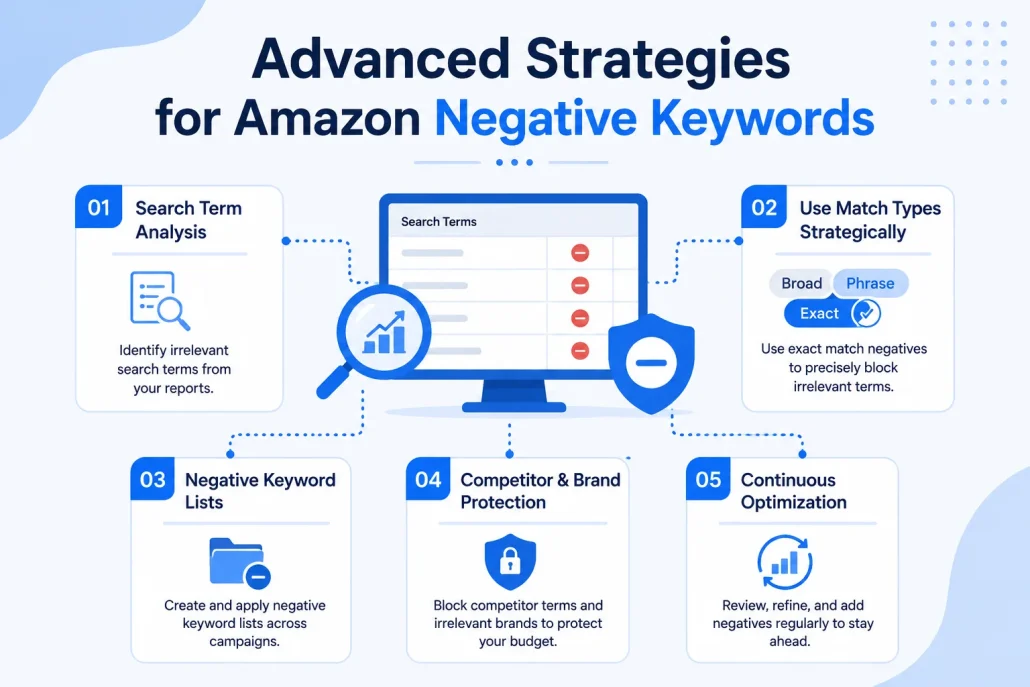
Once you have the basics in place, these advanced tactics give you even more control over your budget:
Negative ASIN Targeting on Amazon
In Sponsored Products campaigns, your ads can appear on competitor product detail pages, not just in search results. Not every competitor page is worth paying to appear on. Negative ASIN targeting Amazon lets you block specific competitor listings where your conversion rate will likely be very low.
Check your Search Term Report for ASIN-format entries (B0XXXXXXXX). Add any high-spend, zero-sale ASINs as negative product targets, especially for competitors with far more reviews or significantly lower prices than your product.
Amazon Negative Keywords for Sponsored Brands and Sponsored Display
Negative keyword targeting for Amazon negative keywords Sponsored Brands campaigns works the same way as for Sponsored Products. For Amazon negative keywords Sponsored Display, the approach differs because Sponsored Display targets audiences and product pages rather than keyword searches.
Instead of keyword-based exclusions, you use negative ASIN targeting and negative category targeting to exclude irrelevant placements, such as blocking an entire budget product category so your premium product does not appear alongside lower-priced alternatives.
You can find full Sponsored Brands setup details in Amazon’s Sponsored Brands negative keyword targeting guide.
External Traffic and the TACoS Connection
Sellers who drive external traffic through Google Ads or Meta Ads benefit even more from tight negative keyword management. Track those results with Amazon Attribution to keep your TACoS Amazon calculations accurate, and a leaner internal PPC spend can also help qualify you for Amazon’s Brand Referral Bonus, which returns roughly 10% of attributed external sales as an advertising credit.
Common Amazon Negative Keyword Mistakes to Avoid
Even experienced sellers make these errors. Here is what to watch for and how to avoid each one:
- Using a single broad root word as Negative Phrase Match: Adding “coffee” as Negative Phrase to block “coffee table” searches also blocks every query containing the word “coffee,” including your main product searches. Use at least two specific words, such as “coffee table,” or default to Negative Exact Match.
- Negating too early without enough data: A search term with 5 to 10 clicks and no sales does not have enough data behind it. Wait for 25 to 30 clicks before acting, unless the intent mismatch is completely obvious from the search query itself.
- Not isolating auto and manual campaigns: Running the same keyword in both campaign types without negating it in the auto campaign means you are bidding against yourself. Apply the Search Term Isolation Method every two to four weeks.
- Never auditing or removing existing negatives: A term that did not convert last year might convert now as your listing, pricing, or review count improves. Review your full negative keyword list quarterly and remove terms that no longer apply.
Automate Your Negative Keyword Management
For sellers managing multiple campaigns, ASINs, or marketplaces, manual weekly reviews alone are not enough. PPC automation tools scan your search terms continuously, flag terms that exceed your thresholds, and apply negatives between your scheduled reviews so slow-draining terms never go unnoticed for weeks.
When evaluating Amazon PPC Tools for automation, prioritize tools that support all ad types, cover every marketplace you sell in, and include integrated search term harvesting to promote winners automatically.
Conclusion: Build Your Negative Keyword Strategy and Scale Smarter
A well-managed Amazon negative keyword strategy is one of the highest-return optimizations available to any Amazon seller. Apply the 3-Signal Method to identify bad search terms, use the Search Term Isolation Method to stop your campaigns from competing against each other, and load the Universal Negative Keyword Starter List before every new campaign. These three steps alone can meaningfully lower your ACoS and raise your conversion rate without touching a single bid.
Negative keywords are not just a cleanup task. They are the foundation of a PPC strategy built to scale. Ready to go further? LandingCube gives you the tools, managed ad services, and strategies to drive smarter traffic, capture more leads, and turn your ad spend into lasting growth.
FAQ: All About Amazon Negative Keywords
Amazon negative keywords are words or phrases you add to your PPC campaigns to stop your ads from showing when a shopper’s query contains those terms. They reduce wasted ad spend, improve your CTR, and keep your budget focused on searches most likely to produce a sale.
Negative Exact Match blocks your ad only when the shopper’s query matches your keyword exactly, including close variants like plurals. Negative Phrase Match is broader and blocks your ad any time the query contains your phrase in the same word order.
Yes, and you should, since negative keywords are your primary tool for steering the traffic an auto campaign receives. Use them to block irrelevant terms and to move proven search terms to your manual campaigns so the auto campaign keeps discovering new ones.
Amazon allows up to 1,000 negative keywords per campaign. If you are approaching that limit, consider tightening your positive keyword match types to reduce the volume of irrelevant matches your campaigns generate in the first place.
Pull your Search Term Report from the Amazon Advertising Console and apply the 3-Signal Method: look for terms with very low CTR, high spend with no sales, and 30-plus clicks with no sales. Also scan for intent signals like “free,” “used,” “how to,” or competitor brand names.
Negative keywords do not affect your organic ranking directly since they only control where your paid ads appear. However, by improving your conversion rate on the searches where you do show up, you send stronger relevance signals to Amazon’s algorithm, which can support better organic rank over time.
Keyword cannibalization happens when two of your own campaigns compete for the same search query, splitting impressions and clicks between your ads and driving up your own CPC. Negative keywords, specifically through the Search Term Isolation Method, are the solution.
Review your Search Term Report every 3 to 5 days for new campaigns, weekly for active growth campaigns, and monthly for stable mature campaigns. Add an extra review two weeks before major shopping events like Prime Day or the Q4 holiday season.
Negative ASIN targeting lets you exclude specific competitor product detail pages from your Sponsored Products placements. If a competitor has far more reviews or a significantly lower price than your product, adding their ASIN as a negative target stops your ad from wasting spend on their page.
Yes, negative keyword targeting is available in Sponsored Brands campaigns the same way it works for Sponsored Products. For Sponsored Display, you use negative ASIN targeting and negative category targeting instead, since Sponsored Display is based on audience and product targeting rather than keyword matching.
RANK LIKE THE PROS
Discover a better way to rank products from external traffic, like Facebook, Google and TikTok, with LandingCube promo pages.
Try it free for 21 days.